Exporting EEG from Natus via VNC (Pioneer)
What this page tells you
Remote into lab kitchen computer MJ0HKNDA, open VNC Viewer to HUP-XLTEK-CNT (password in the lab password manager; three wrong attempts wipes Natus data), mount cnt-fs if needed, then EDF-export the Mxene and clinical clips (no video) into cnt-fs/eeg_raw/Mxene_project/RIDXXXX_Mxene and _Clinical folders. Record actual recording dates/times.
Credential removed
A password that appeared in the original text has been removed. Get it from the lab password manager, never from a wiki page.
- We need to remote into the Natus computer which is in the EMU testing room.
- To do this, we first will remote into the computer in the lab kitchen and then from there enter the Natus computer.
- First, log into the remote access portal
- Click on PennChart and Citrix Apps
- Click on the remote desktop connection and enter the name of the computer:
- MJ0HKNDA
- Penn medicine password
- Once you are in the computer, search VNC Viewer and click on the VNC app
- Click on: HUP-XLTEK-CNT
- Password: (in the password manager) (USE THE CORRECT PASSWORD !!!)
- If you put in the incorrect password 3 times, all of the data in natus across all the hospitals will delete and you cannot stop it
- Once you are in Natus, make sure you are in the EMU Database in the top left
- Search patient in the left hand side by name
- You need to mount cnt-fs in the VNC Server Computer if it is not mounted already.
- Mounting cnt-fs:
- Log into VDI
- Search up file explorer
- Go to “This PC”
- You should see the CNT server there
- Click on CNT
- If CNT is not there, then you have to remount it:
- Right click on Network
- Select “Map Network Drive
- In Drive, select Z:
- In Folder, type in this pathway: \\pmacs.upenn.edu\depts\NE-4322-Neurology\CNT OR type \\172.16.50.149\CNT
- Be sure to check "Connect using different credentials"
- Hit Finish
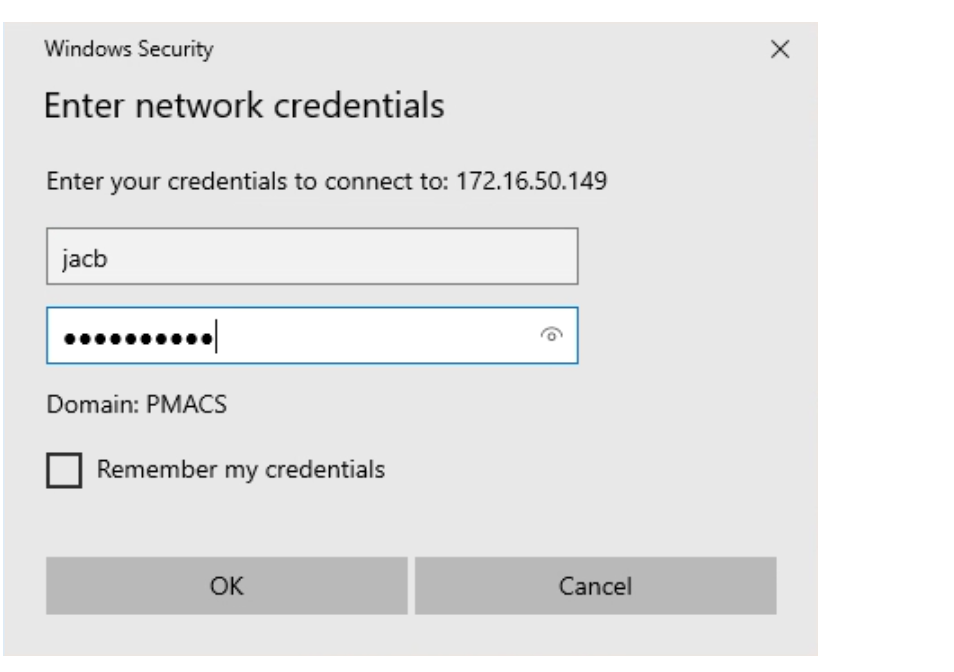
- When the login page pops up, put in your pmacs login:
- If the Domain does not say pmacs, then for your username put in pmacs\pennkey
- In the screenshot below, if the domain did not say PMACS then the username would have been: pmacsXjacb
- Right click on the clip you want to export → select edf export → uncheck video → click browse folder to find the folder you need (Intracranial_EEG, CCEPS, Gottfried, Gold_Audio, etc.)
- As the recording is exporting from Natus to cnt-fs, there should be a pop-up window with a green bar and estimated time left for export. Within that window, there will be the patient's name followed by a random combination of letters and numbers. For example, "XXXXX~XXX_1g67f23h." The first 8 letters and numbers are the unique file name for each eeg.
Exporting the data:
- The data will be exported into cnt-fs
- In cnt-fs, create a folder titled RIDXXXX in cnt-fs/eeg_raw/Mxene_project
-
Inside this folder (cnt-fs/eeg_raw/Mxene_project), create 2 folders called RIDXXXX_Mxene and RIDXXXX_Clinical
cnt-fs/eeg_raw/Mxene_project/RIDXXXX/RIDXXXX_Mxene
cnt-fs/eeg_raw/Mxene_project/RIDXXXX/RIDXXXX_Clinical -
Create a data collection file and document the actual times and dates that the Mxene and Clinical recordings were done. You can leave this file in the RIDXXXX folder.
- This is just for record-keeping to make sure we have the actual dates/times documented somewhere. We do not need this for processing. Look at a previous patient for an example.
- Log into the remote desktop to access the Natus computer
- In the Natus computer, go to Database on the upper left hand side, and make sure to select EEG instead of EMU
- Scroll to the date that the test was completed
- Export the data as an edf file!
- Export both the research file that you did AND the clinical eeg recorded. These will be 2 separate files
- Export the Mxene file in the following folder in cnt-fs: eeg_raw/Mxene_project/RIDXXXX/RIDXXXX_Mxene
- Export the Clinical file in the following folder in cnt-fs: eeg_raw/Mxene_project/RIDXXX/RIDXXXX_Clinical