UPHS F5 VPN Access
What this page tells you
To get UPHS F5 VPN: submit a UPHS IS ticket at pennmedaccess (screenshots show template), email Kristy Peters to self-assign it, then install the F5 Big-IP client using the attached Mac instructions.
-
Submit UPHS IS ticket and save the ticket number
-
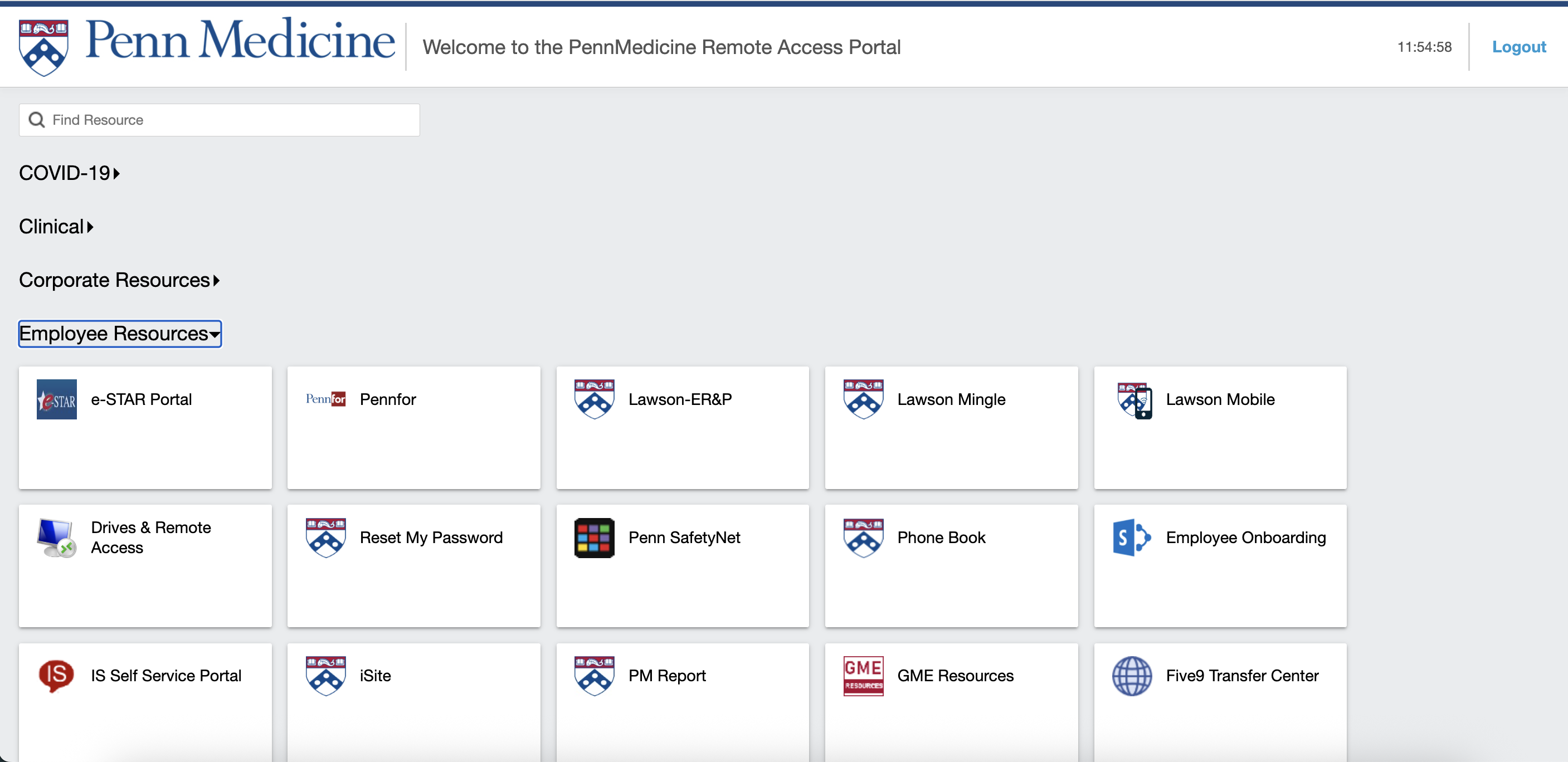
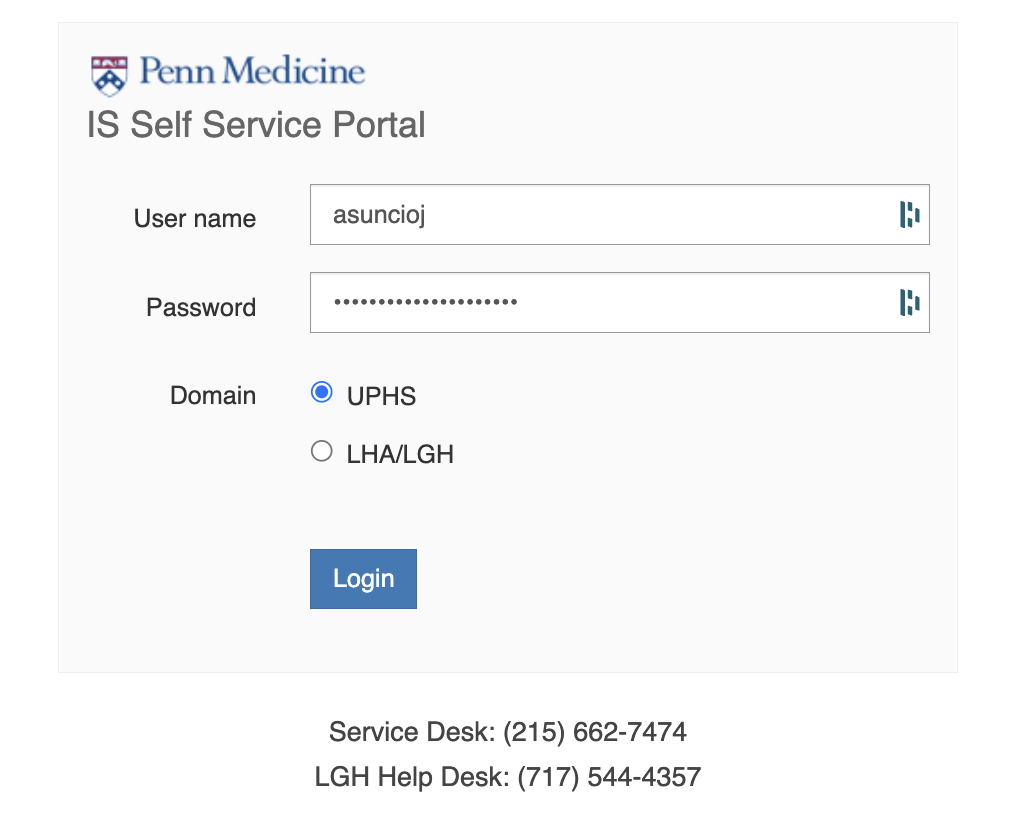
Click "IS Self Service Portal" and then login to the UPHS IS Helpdesk
-
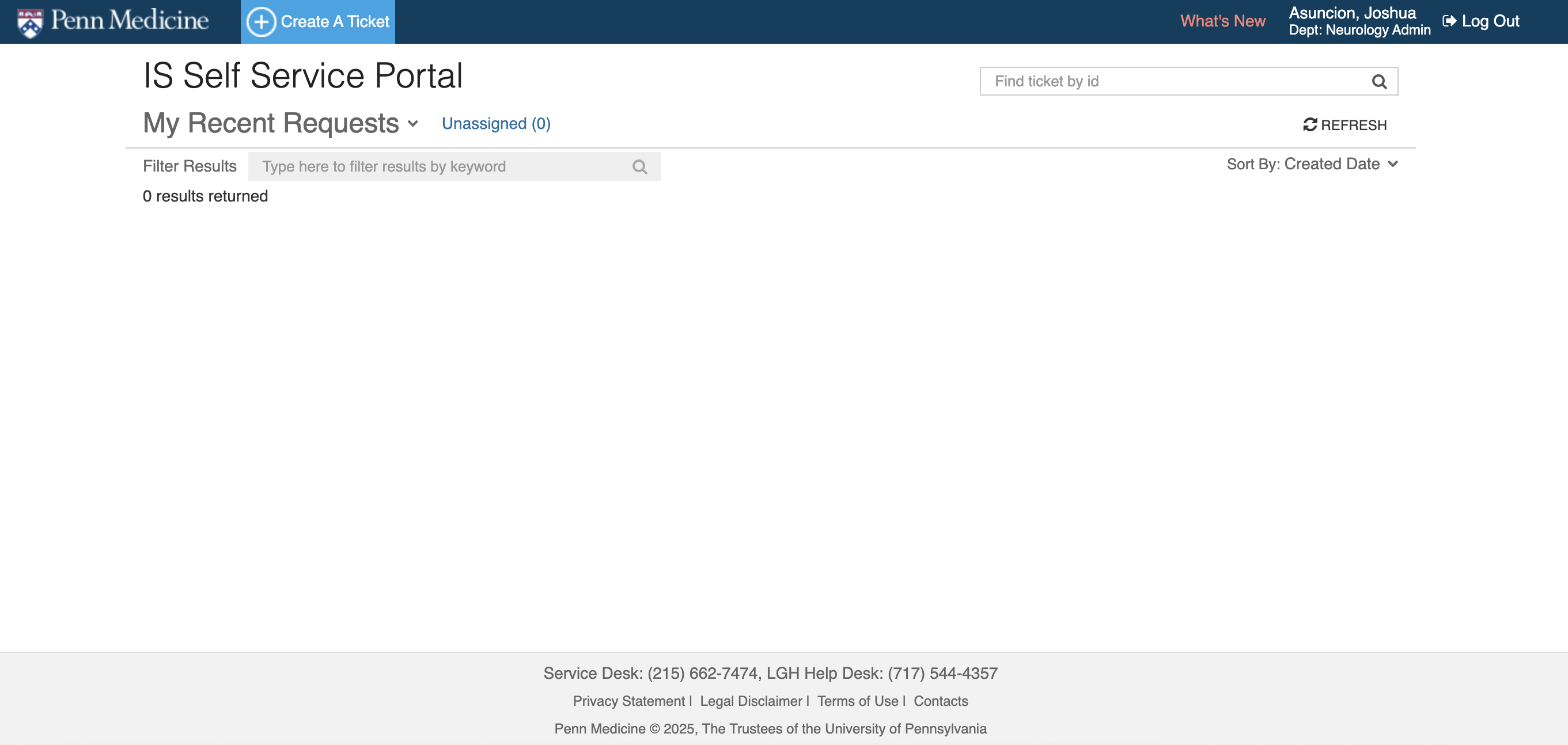
Click "Create A Ticket"
-
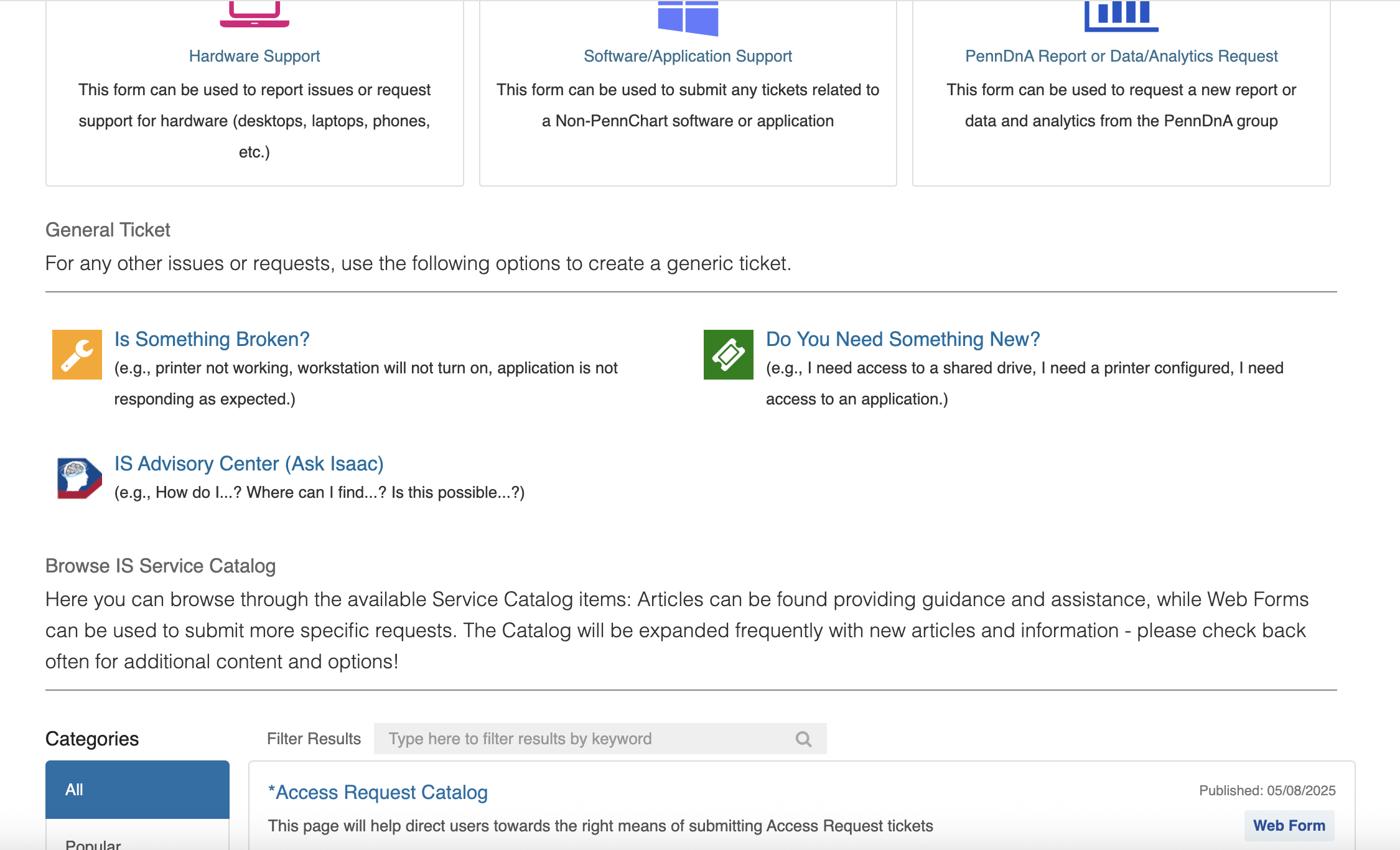
Click "Do You Need Something New?"
-
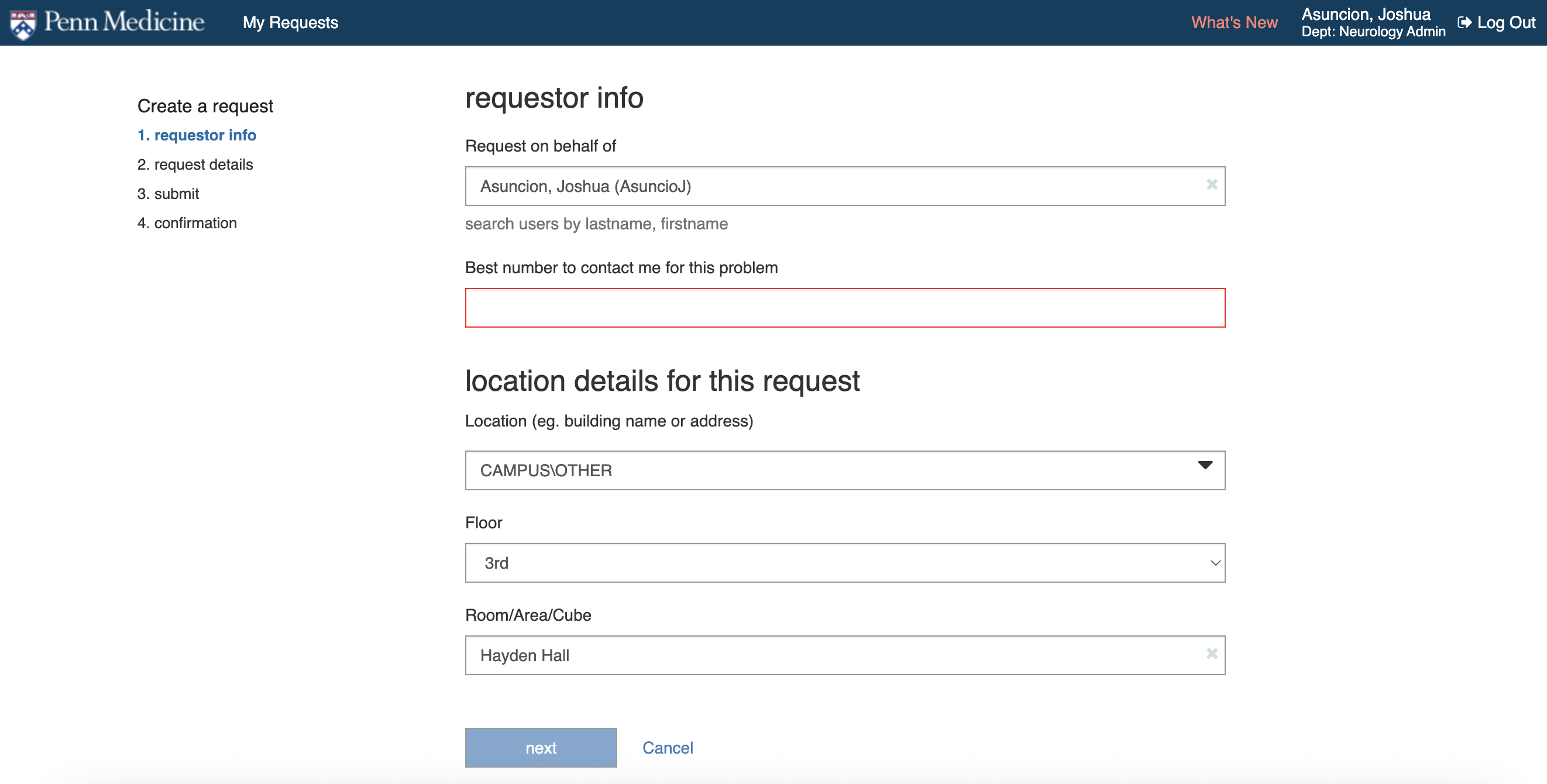
Fill out the requester info. See screenshot for template
-
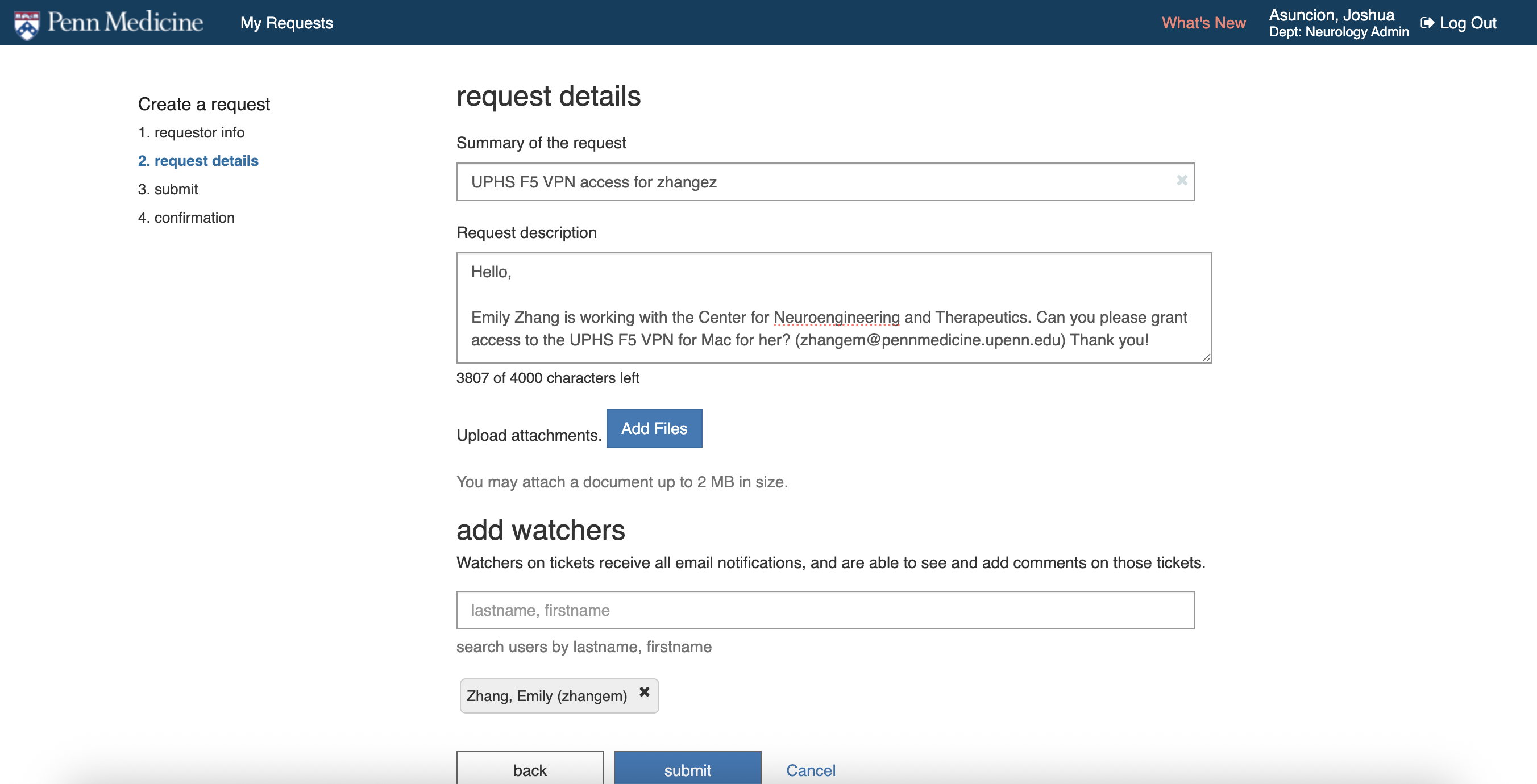
Fill out the request details. See screenshot for template
-
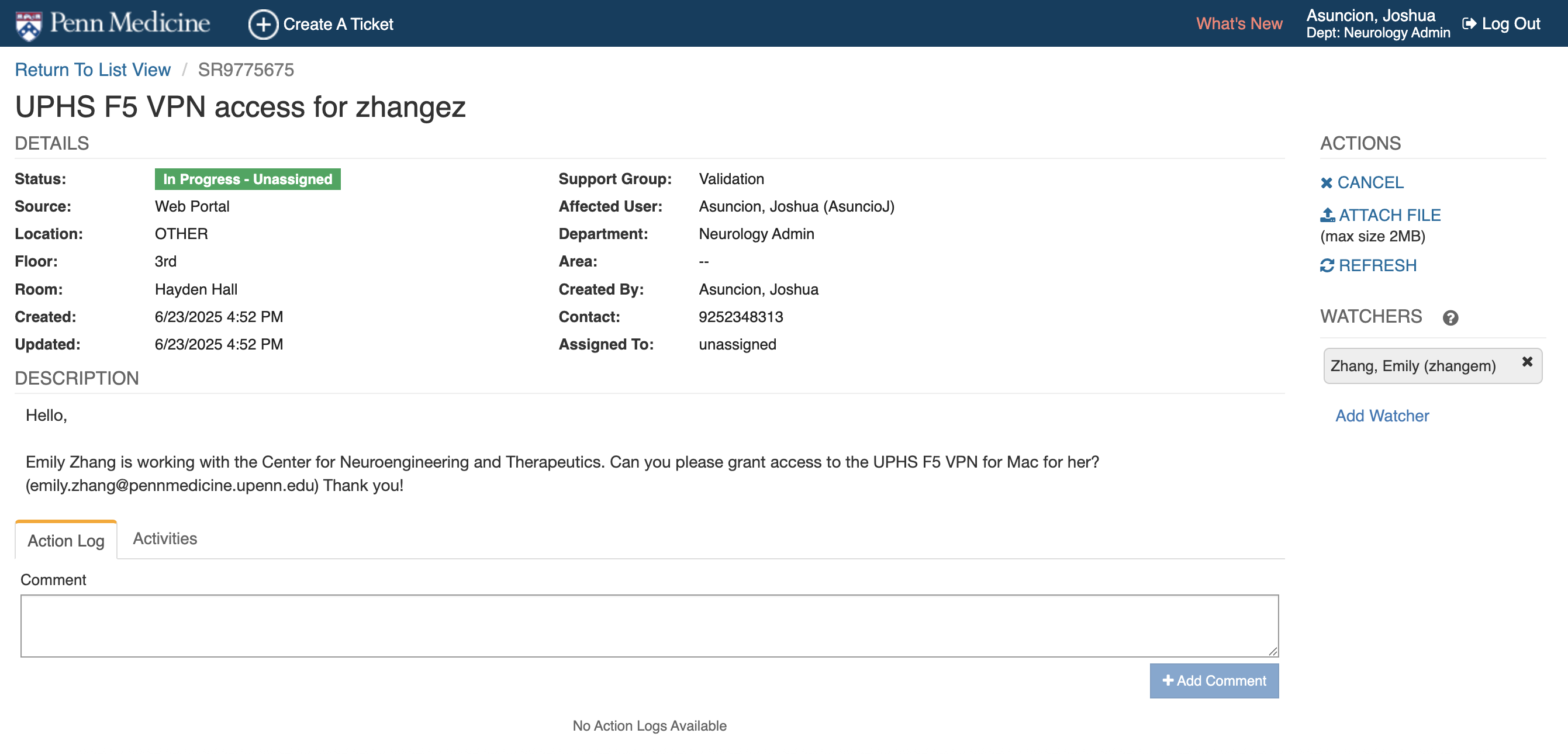
Make sure to record the ticket number
-
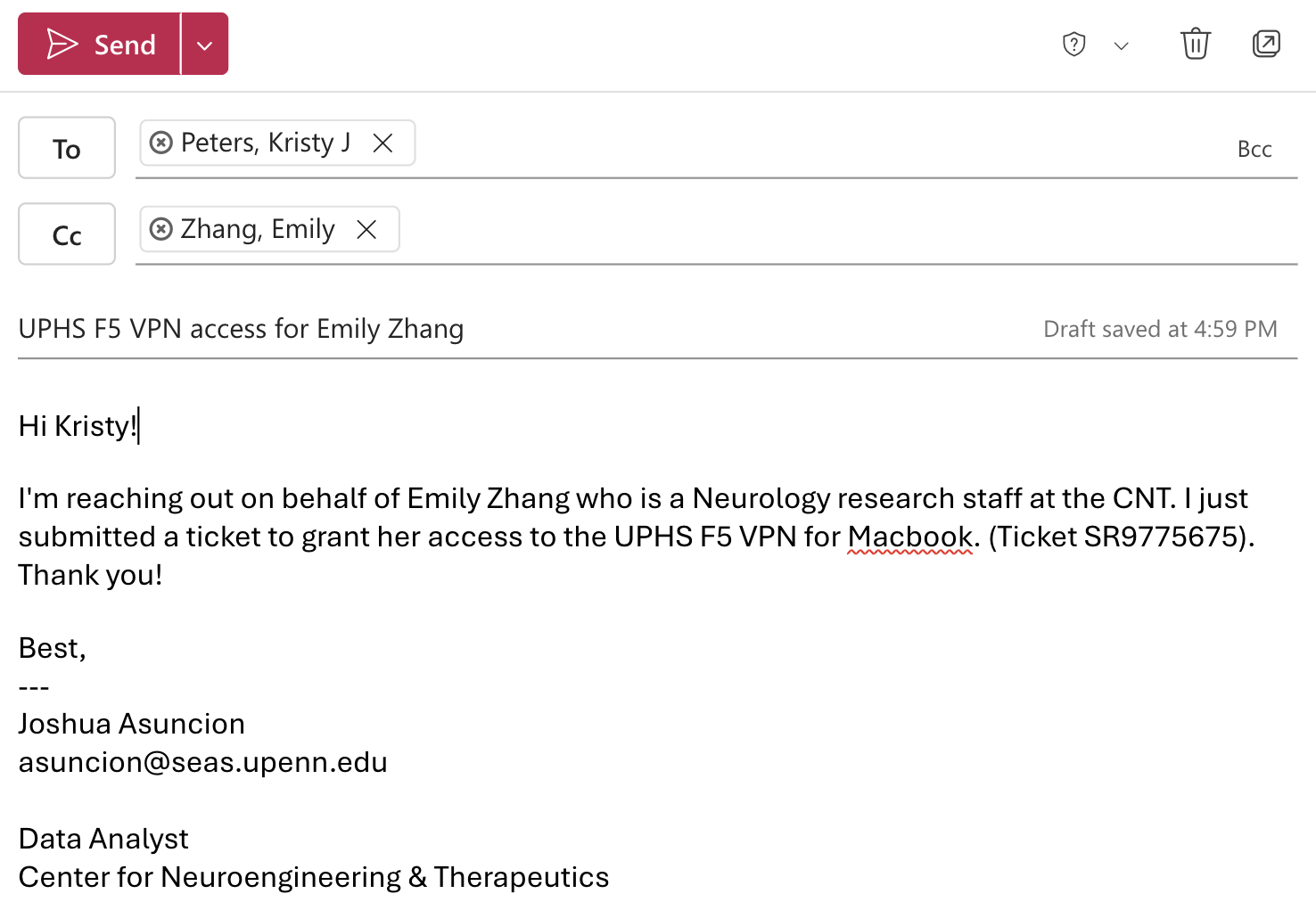
Send an email to Kristy J Peters (Senior Advisor, Cybersecurity Risk & Compliance) at kristy.peters@pennmedicine.upenn.edu to notify her of this request. She will self-assign the ticket and grant UPHS F5 VPN access.
- Template blurb for email:
- Template blurb for email:
-
Download and install the F5 Big-IP Client VPN application to your personal computer
- Please see the attached documentation for instructions
📄 F5 access Mac software.docx
- Please see the attached documentation for instructions